Perfex CRM
Perfex CRM WhatsApp Plugin – Installation & Usage Guide
Learn how to integrate WhatsApp messaging directly inside Perfex CRM to send automated, bulk, and scheduled messages without leaving your CRM dashboard.
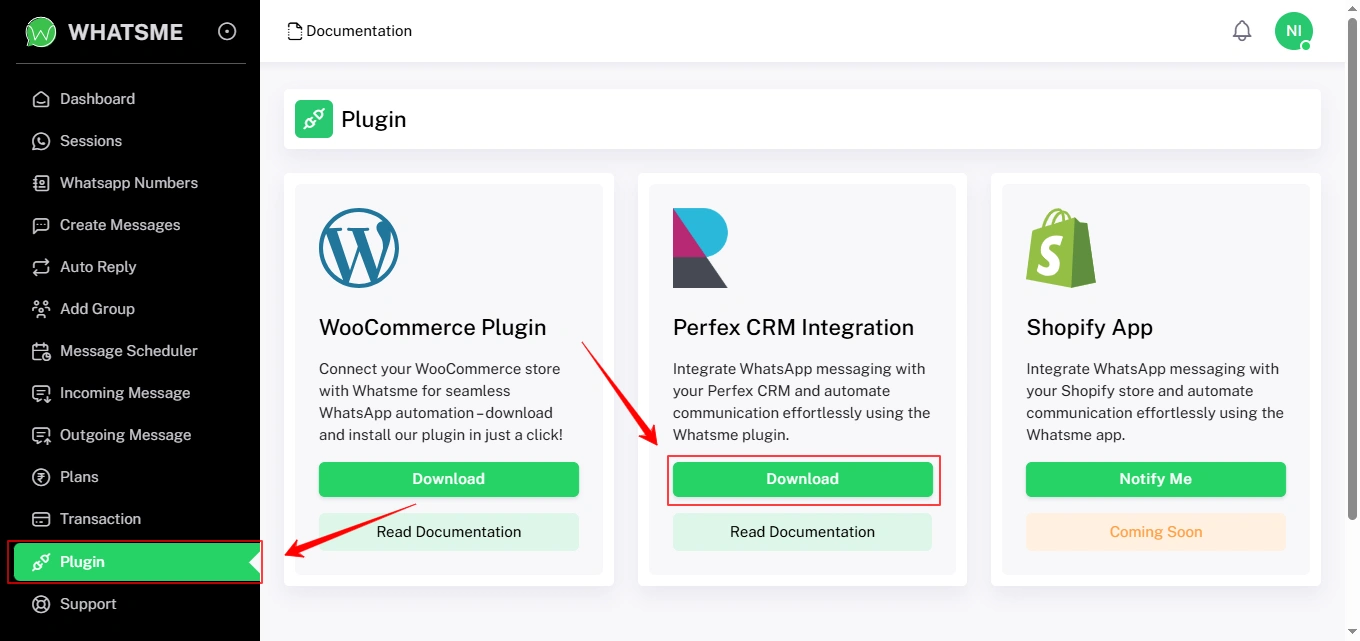
Step 1 – Download the Perfex CRM WhatsApp Plugin
Log in to your WhatsMe Dashboard, go to the Plugins section, and click Download next to the Perfex CRM Integration plugin file. Save the file to your computer.
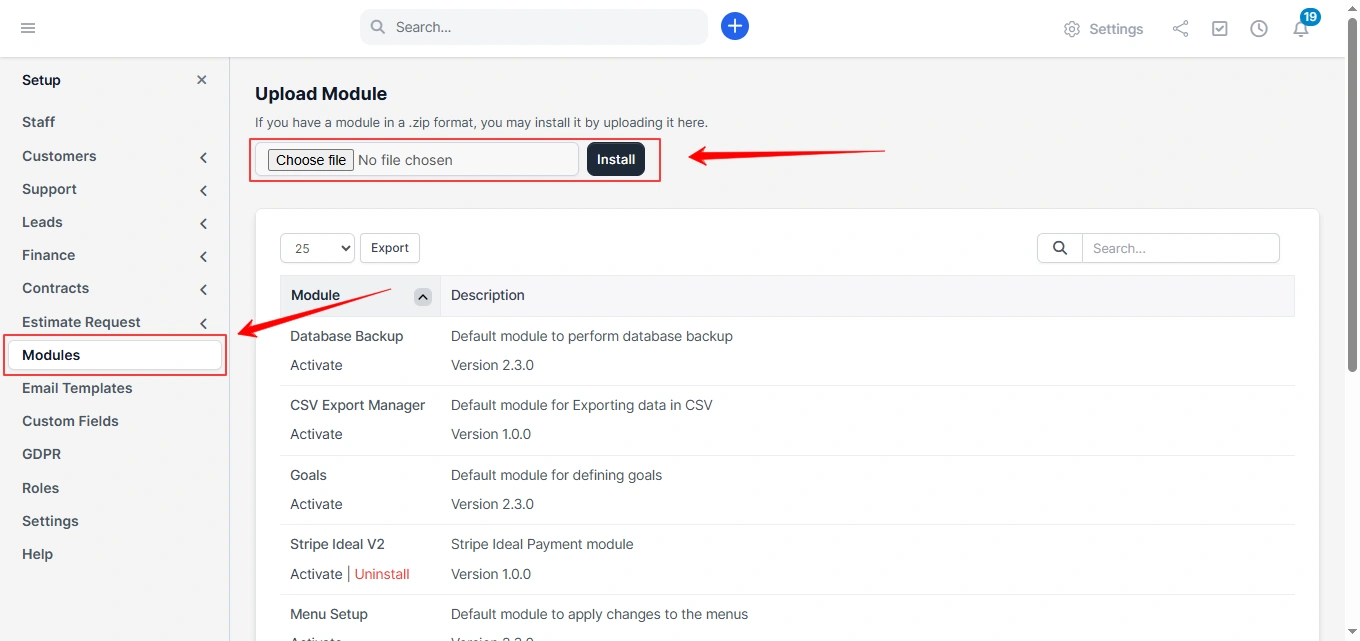
Step 2 – Install the Plugin in Perfex CRM
Navigate to Setup → Modules in Perfex CRM and click on Upload Module. Select the plugin file you downloaded from the WhatsMe dashboard.
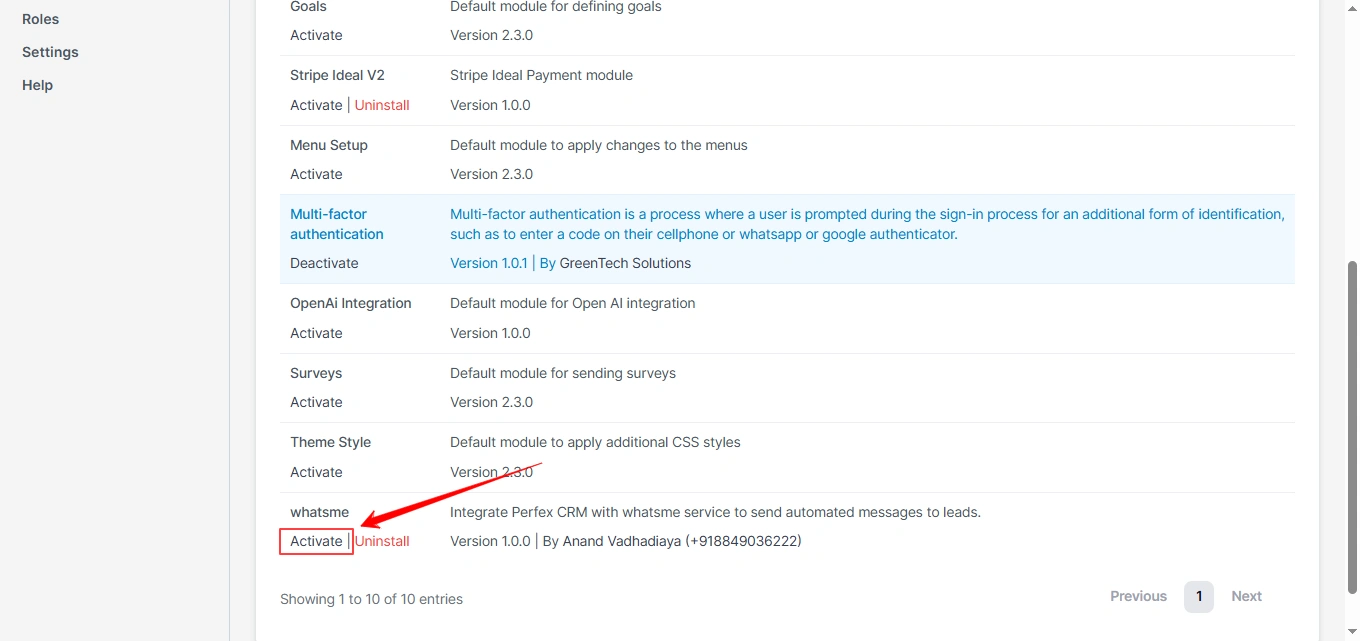
Step 3 – Activate the Plugin
Once uploaded, find the module in the list and click Activate to enable it.
Step 4 – Add a WhatsApp Session
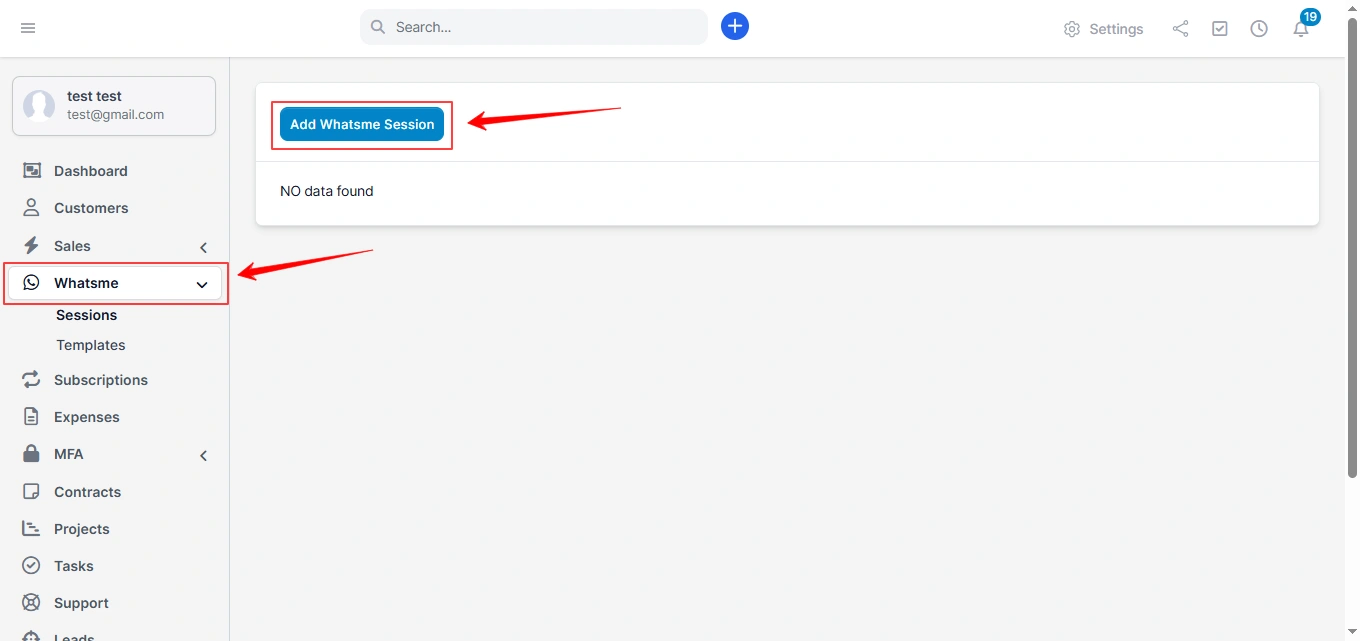
From the Perfex CRM menu, go to WhatsMe → Sessions and click Add WhatsApp Session.
Step 5 – Enter API Key & Assign Staff
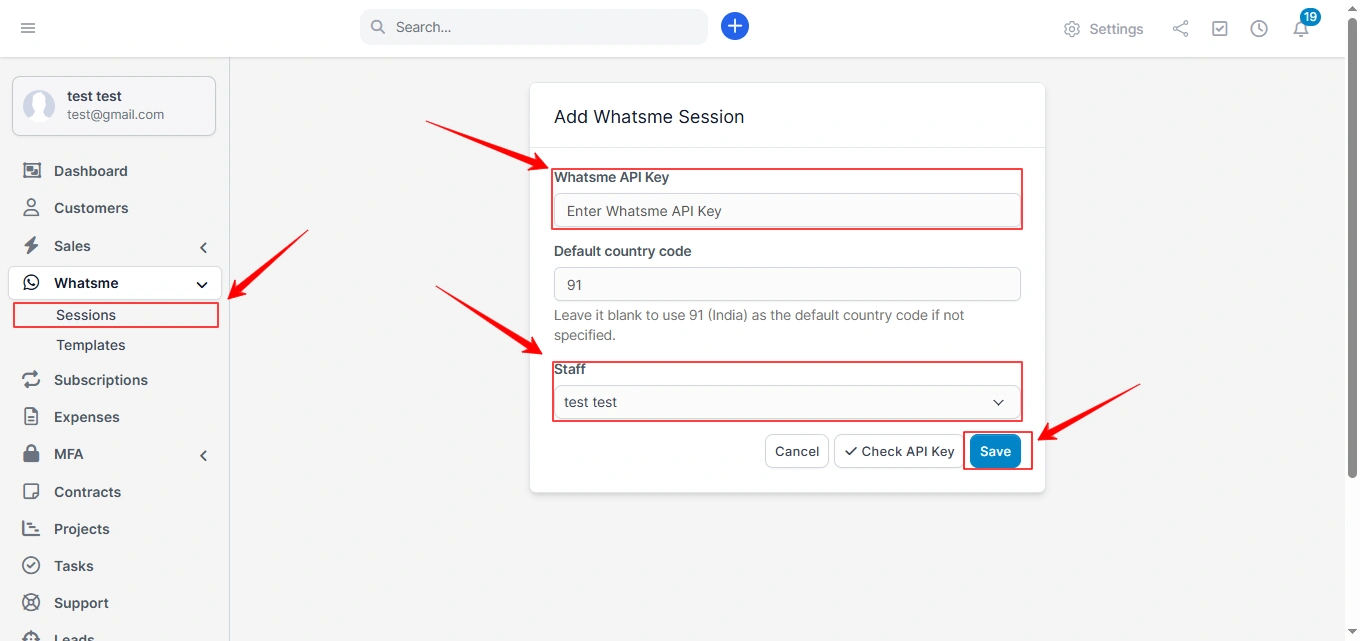
Paste your WhatsMe API Key, select the staff member who will manage the session, and click Save.
Step 6 – Recheck Session
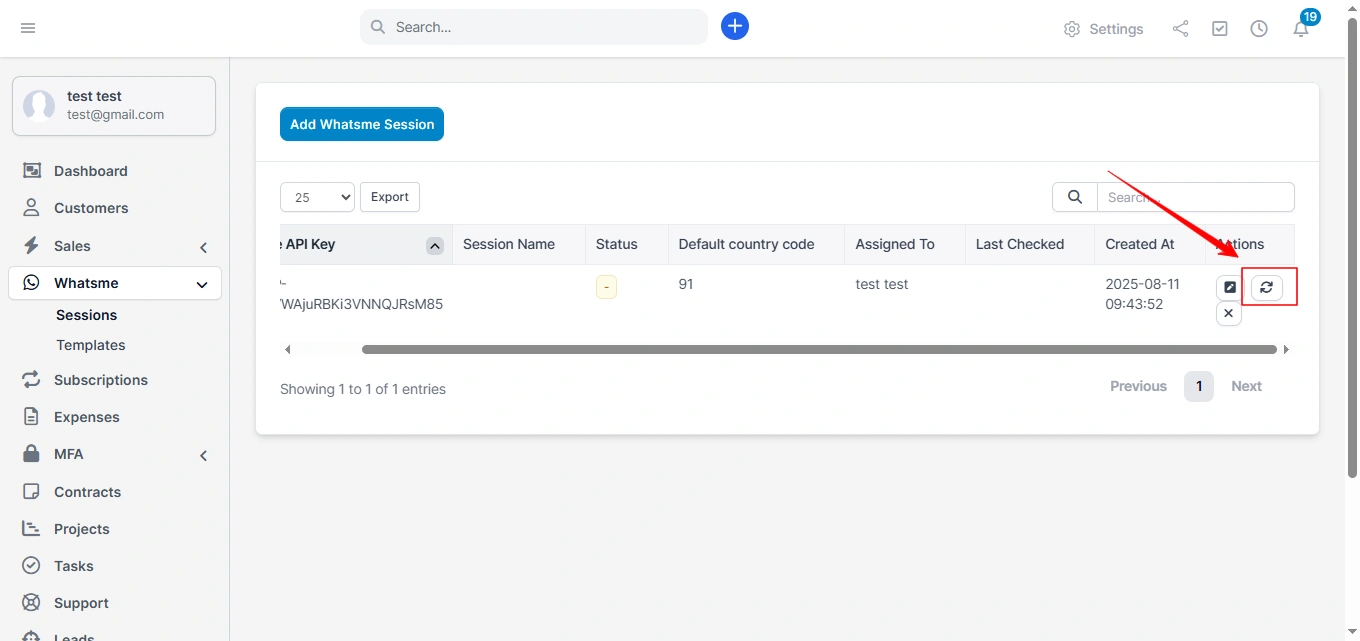
After saving, click Recheck to verify the connection status.
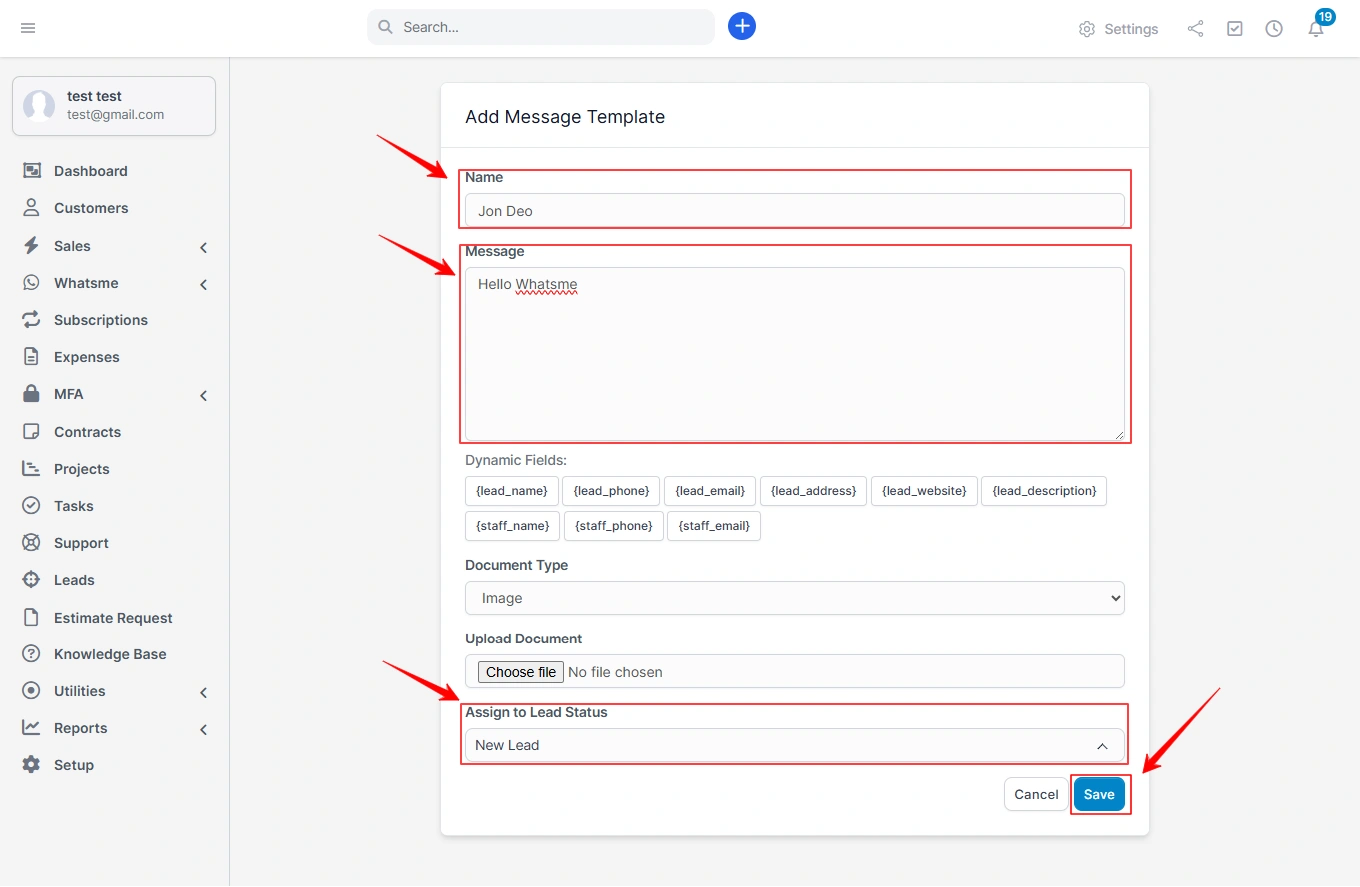
Step 7 – Add Message Templates
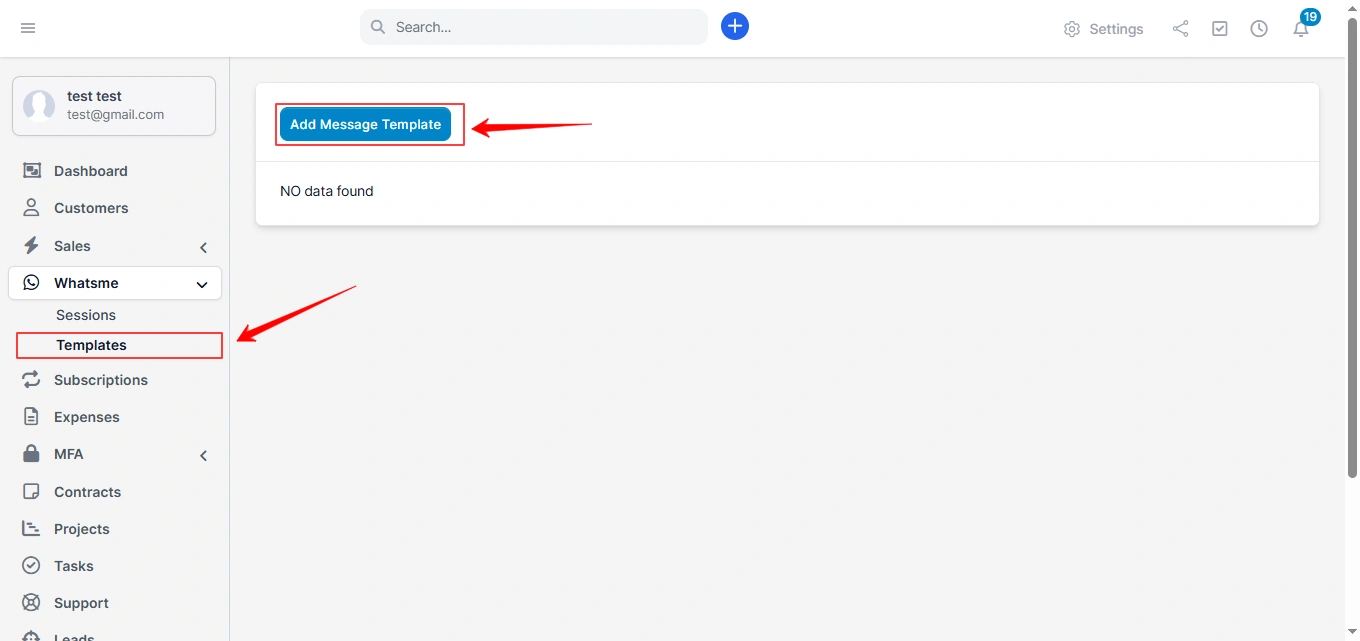
Go to WhatsMe → Templates and click Add Message Template.
Step 8 – Configure Template Details
Enter the Template Name andMessage Content. You can use dynamic fields to personalize messages.
- To attach a file, select Document and upload it.
- Set the Lead Status for this template. Once done, click Save.